Private by design.
Built on Apple FSKit. No kernel extensions or disabling SIP. Your disk files are processed locally.
Turn read-only into ready for anything.
Read and write NTFS in Finder, without kernel extensions.
Try NTFS read and write for free. See trial availability and terms in the app.
macOS 26.0+ · Apple Silicon
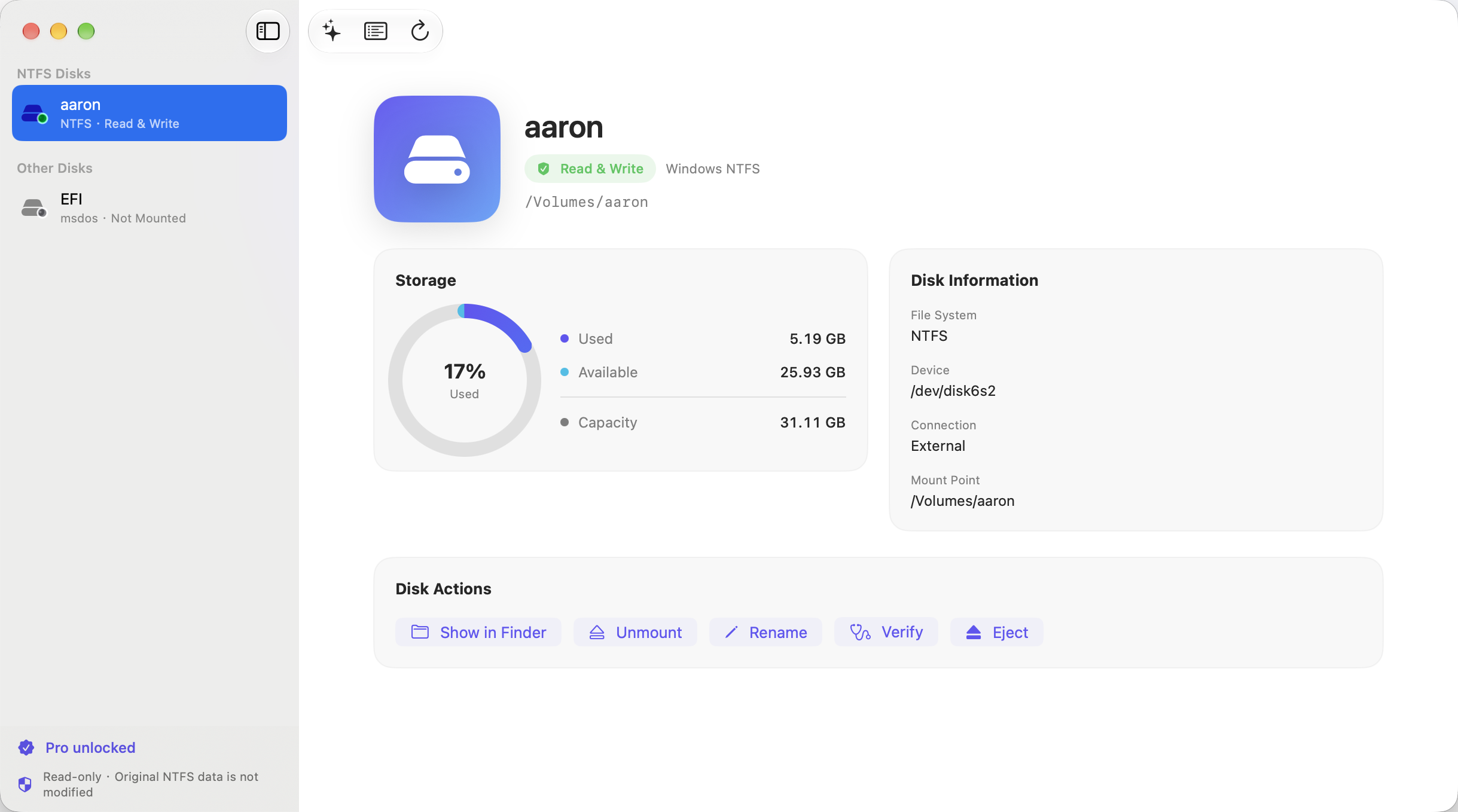
Watch the product video (in Chinese), then try it on your Mac.
A simpler way to work with the files you use every day.
Built on Apple FSKit. No kernel extensions or disabling SIP. Your disk files are processed locally.
Copy, write, rename and delete in the Finder you already know. Move your everyday files between Mac and Windows.
Native file system integration keeps everyday transfers simple and fluid, so you can get on with your work.
Write access requires a valid entitlement and a supported, healthy NTFS volume. Actual speed varies with hardware and connection.
Built with Apple FSKit, without kernel extensions, replacing system NTFS components or lowering system security settings. Your files are read and written locally.
Read our privacy policy ↗Install the app, then enable its file system extension in System Settings. If it does not become available, re-enable it and restart your Mac if needed.
Plug in your external drive or USB stick. Select it in the app and confirm read/write mode is active.
Manage files in Finder just as you would on a Mac drive. Safely eject when you’re finished.
You do not need to disable SIP. NTFS Writer uses an Apple FSKit user-space file system extension without kernel extensions. Enable it in System Settings before first use. Registration or loading issues may require re-enabling the extension or restarting your Mac.
The current build requires macOS 26.0 or later.
Disk reads and writes happen on your Mac. The app does not upload disk files to our servers. Apple StoreKit handles purchases; information you send to support is used to address your request.
Yes. Safely eject your drives, disable launch at login, quit the app, disable its file system extension in System Settings and remove the app. It does not replace system NTFS components. Uninstalling does not cancel an Apple subscription.
Everyday reads and writes are supported on healthy NTFS volumes. Volumes needing journal recovery and some compressed or encrypted data have restrictions. Back up important files first. Transfer speeds depend on the drive, connection and file types.
macOS 26.0+ · Apple Silicon